What you can do with the number question
With a number question, the respondent answers with a number, such as a count, an age or a rating out of 10. You decide how they enter that number and how Survey4Bizz links a score to it.
One number, four settings
With a number question, the respondent answers with a number. Two choices determine how the question works: how the respondent enters the number, and how Survey4Bizz links a score to it. You control this with the following settings (the screenshots show the Dutch interface; the Dutch label is given in brackets):
| Setting | What it does |
|---|---|
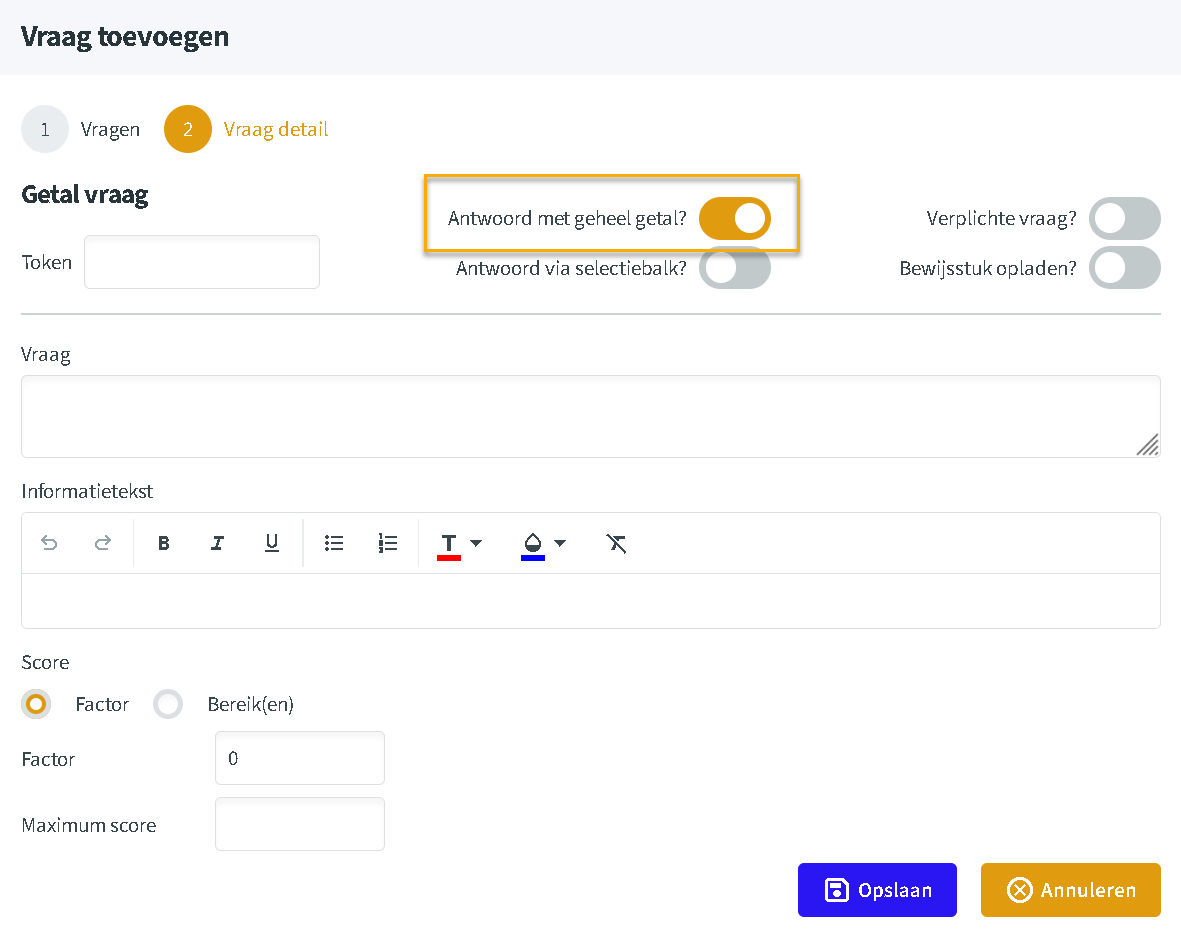
| Whole-number answer (Antwoord met geheel getal?) | Only whole numbers; with the switch off, answers are decimal numbers |
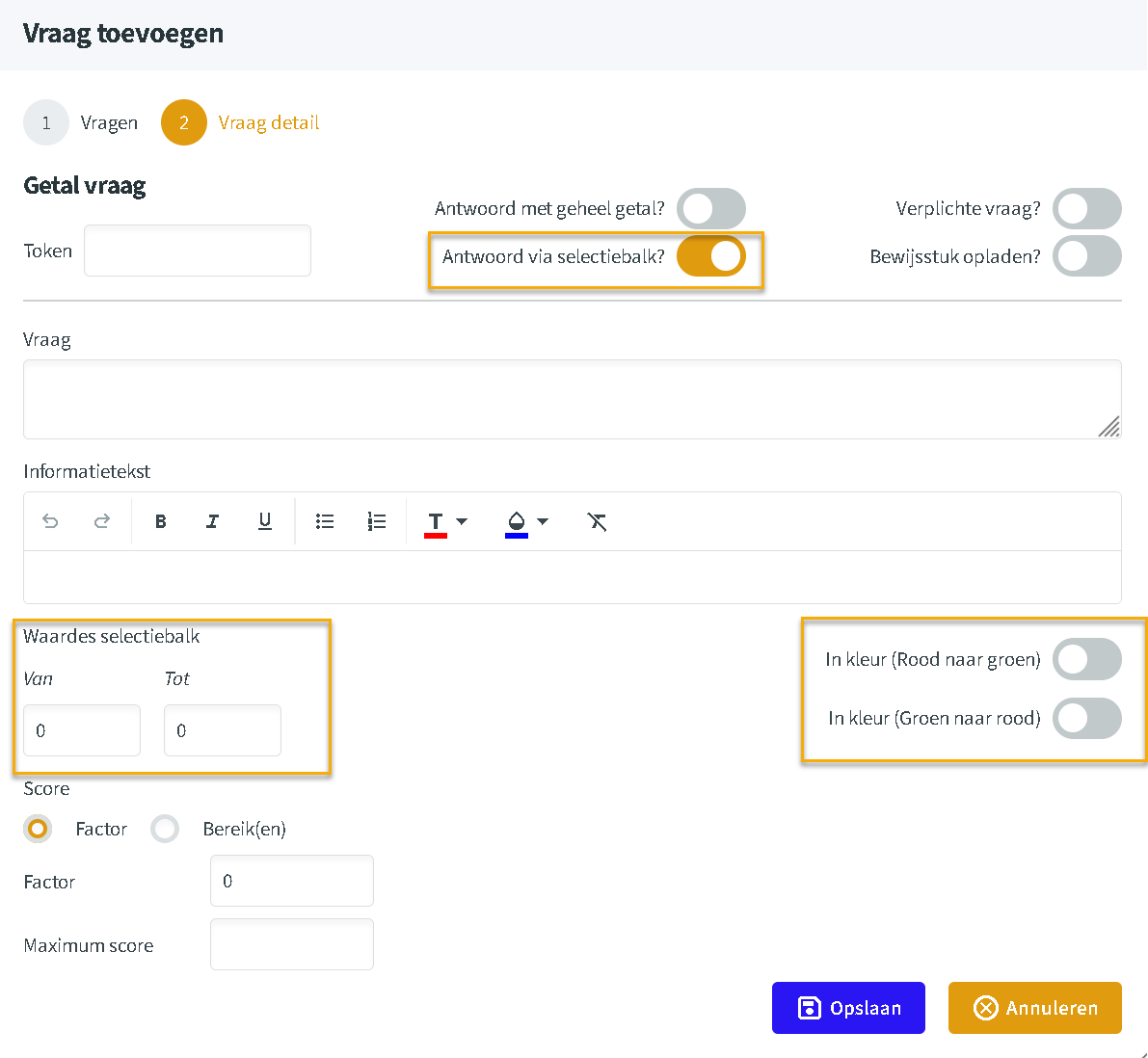
| Answer via selection bar (Antwoord via selectiebalk?) | The respondent clicks a button with a number instead of typing it |
| Score: Factor | The score is the answer multiplied by a factor, without checking the answer |
| Score: Range(s) (Bereik(en)) | Each range of numbers gets its own score; answers outside the ranges are rejected |
Whole or decimal number
The whole-number answer switch (Antwoord met geheel getal?) determines what kind of number the respondent may enter.
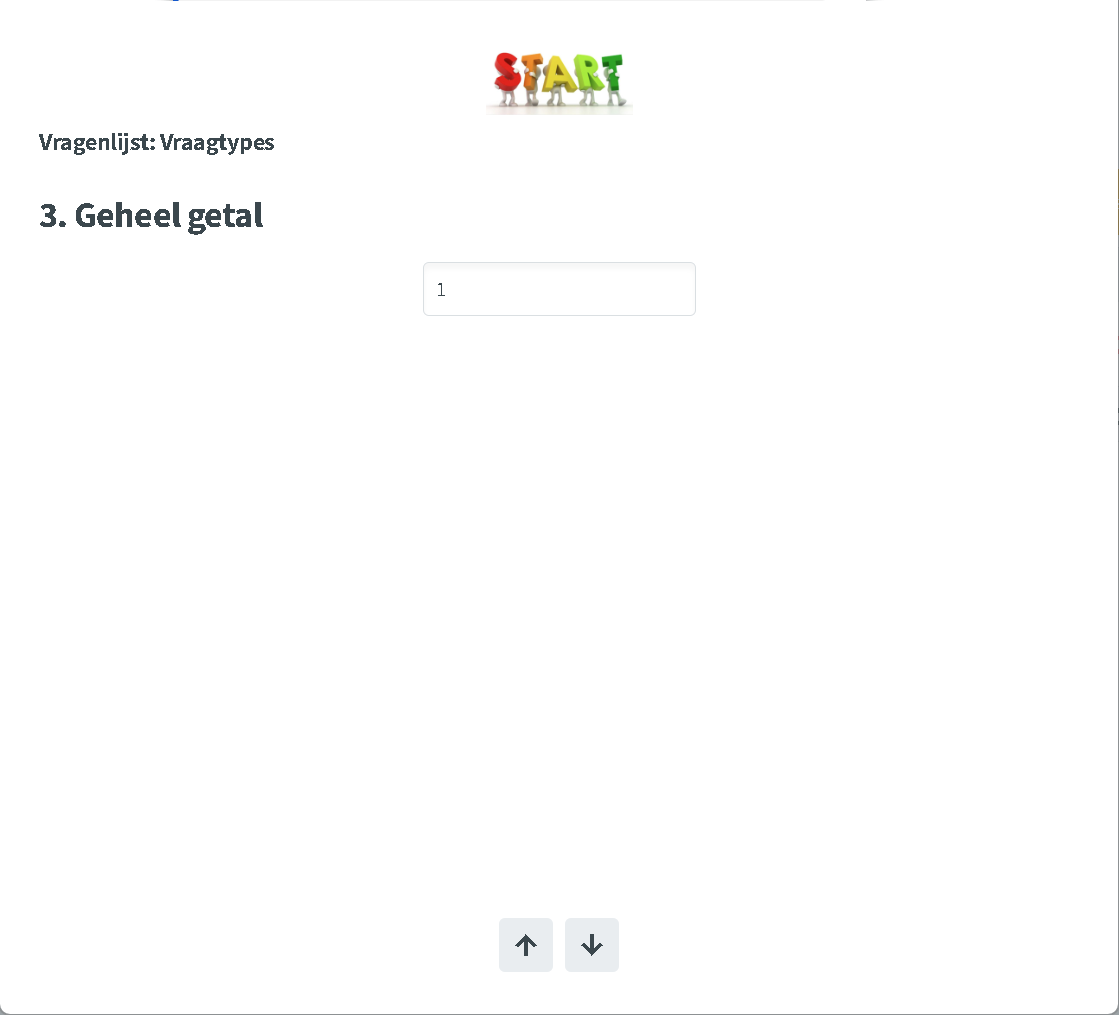
- Switch on: only whole numbers are allowed, such as 1, 12 or 250. If the respondent still types a decimal number, only the whole value is stored.
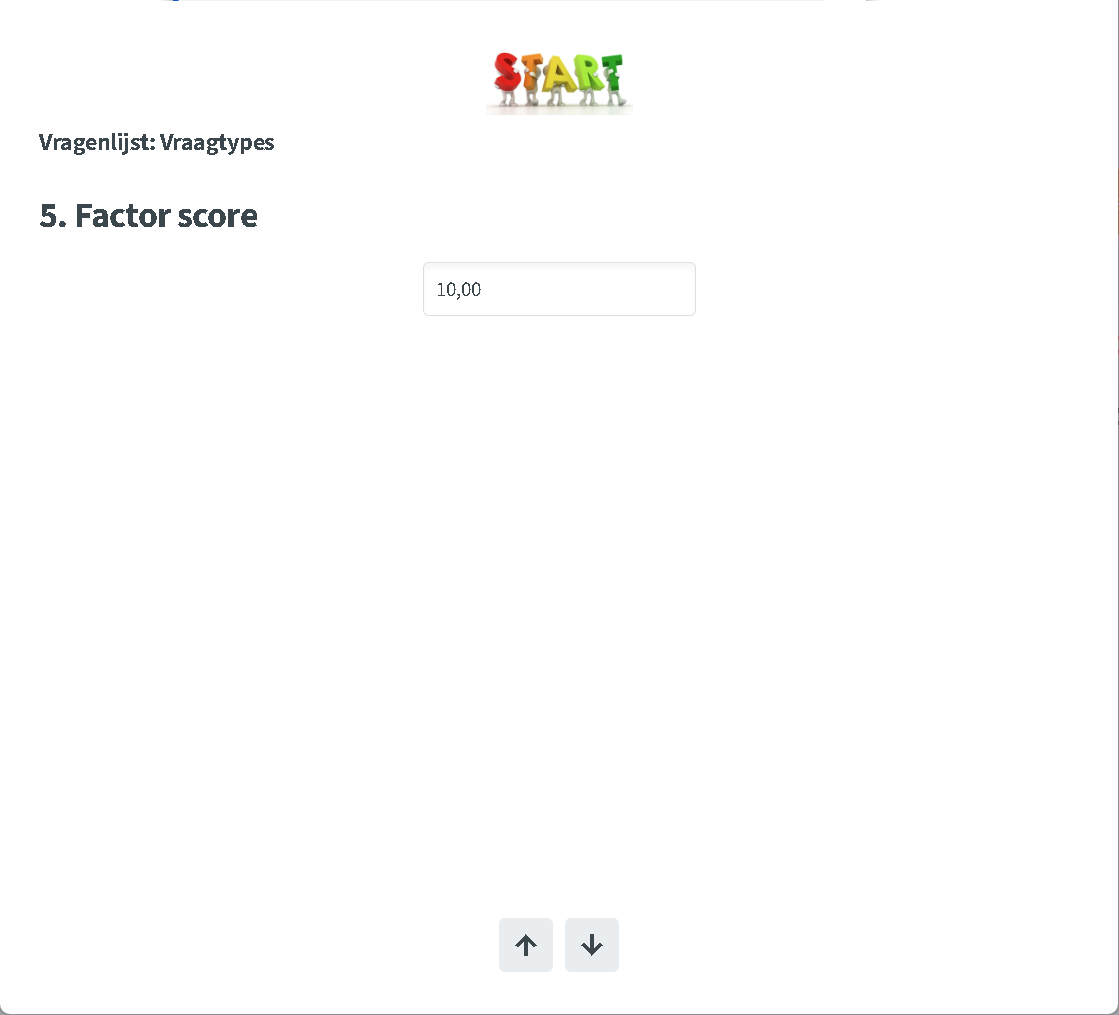
- Switch off: the answer is always a decimal number, such as 10.00 or 7.5.
Choose a whole number for things you count, such as a number of participants or years of service.
Answering with a selection bar
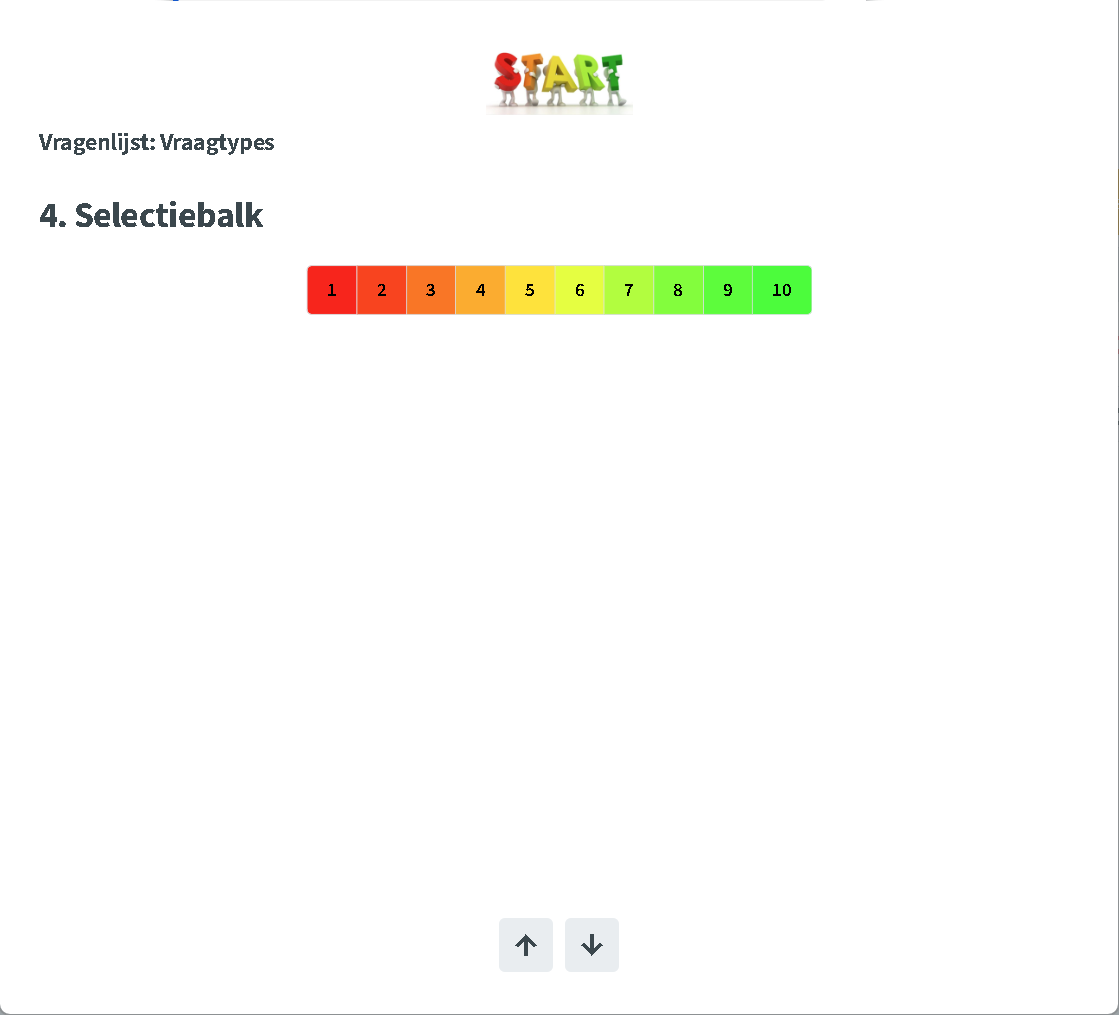
If you turn on answer via selection bar (Antwoord via selectiebalk?), the question gets a completely different layout. The respondent no longer types a number but clicks a button with a number on it. That number is their answer.
Two extra settings appear:
- Selection bar values (Waardes selectiebalk): under Van (from) and Tot (to) you choose the first and last number on the bar, for example from 1 to 10.
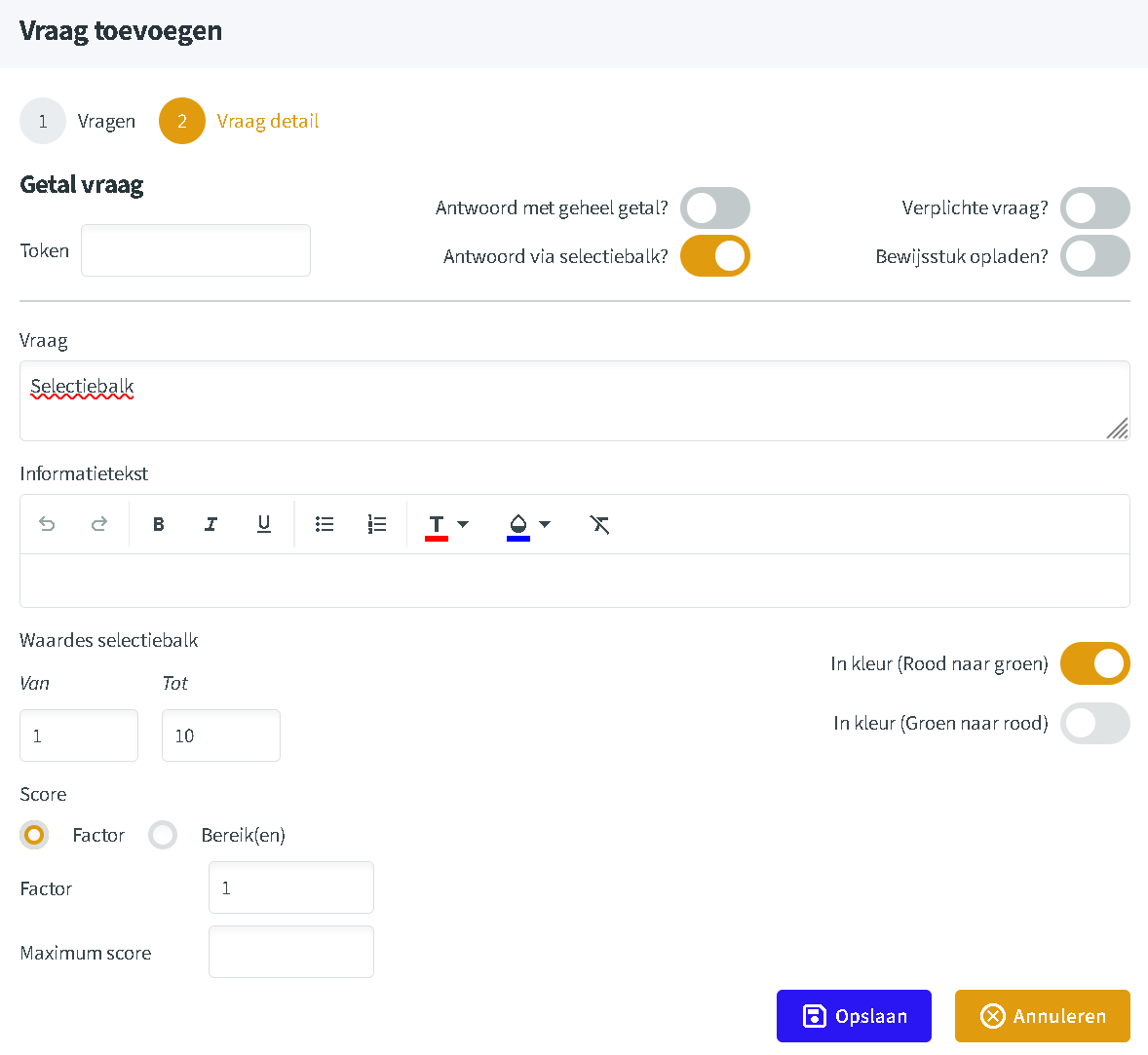
- Colour: the buttons can get a colour gradient. Choose red to green (Rood naar groen) or green to red (Groen naar rood), depending on which end of the scale is positive.
In this example the bar runs from 1 to 10, from red to green:
Scoring with a factor
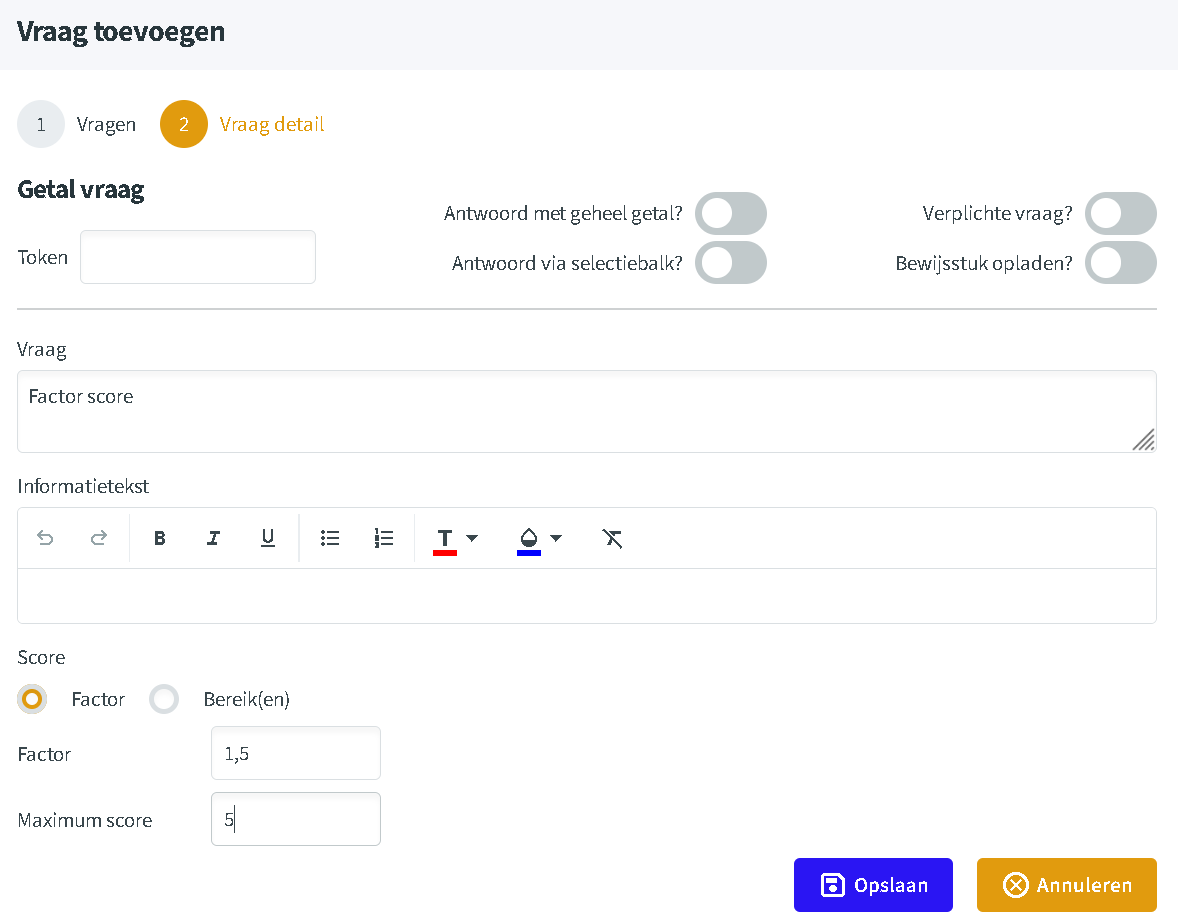
If the respondent may enter any number freely, you choose under Score how the score is calculated. With Factor, the answer is multiplied by the factor you enter. The number itself is not checked: the respondent may enter any number.
Optionally, you enter a maximum score. It does not limit which number the respondent enters, only the calculated score.
Worked example with factor 1.5 and maximum score 5:
| Answer | Answer × factor | Score |
|---|---|---|
| 2 | 3 | 3 |
| 10 | 15 | 5 (capped by the maximum) |
Scoring with ranges
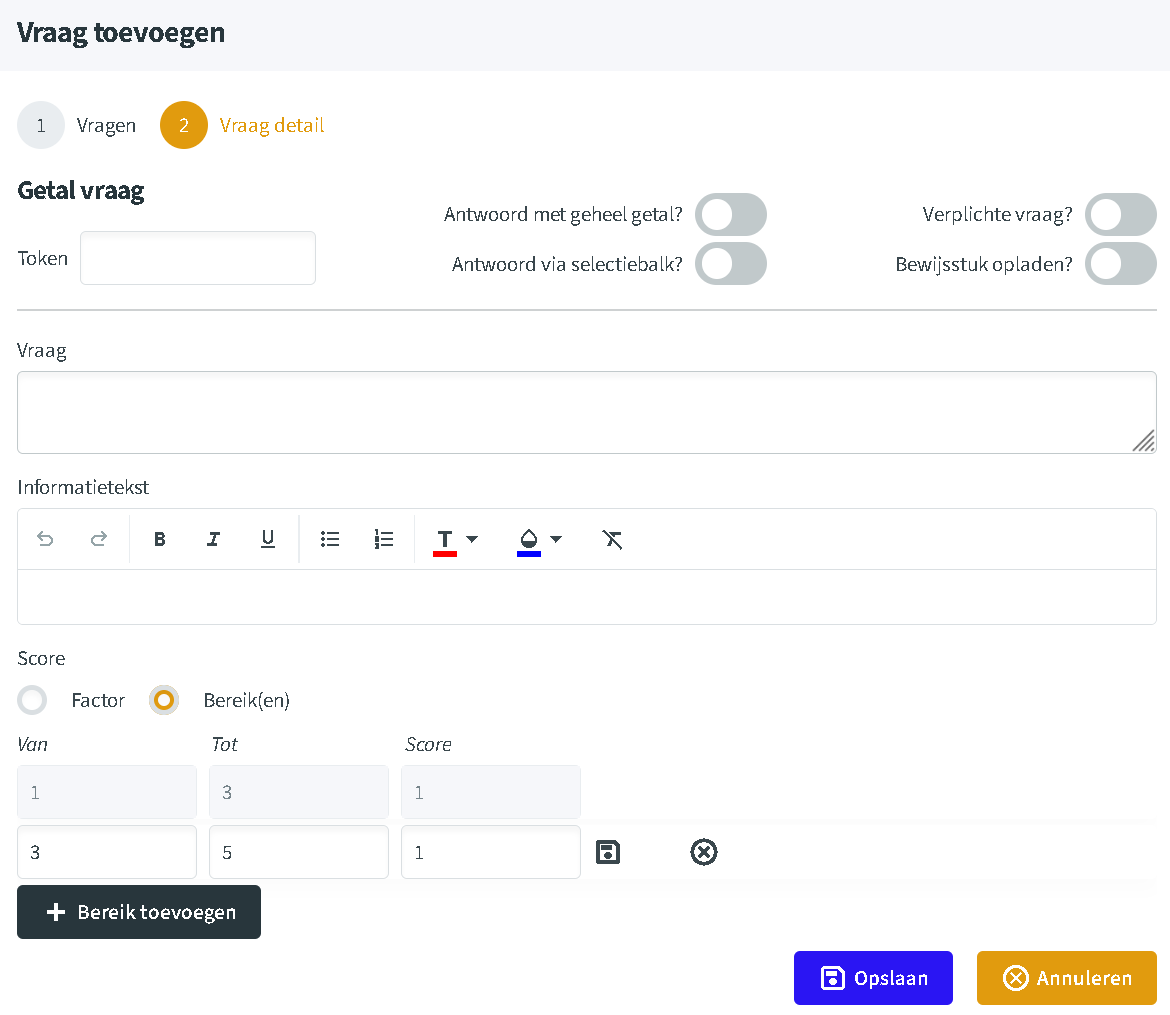
With Range(s) (Bereik(en)) you divide the possible answers into ranges, each with its own score. Unlike a factor, this does affect what the respondent may enter.
Setting up ranges
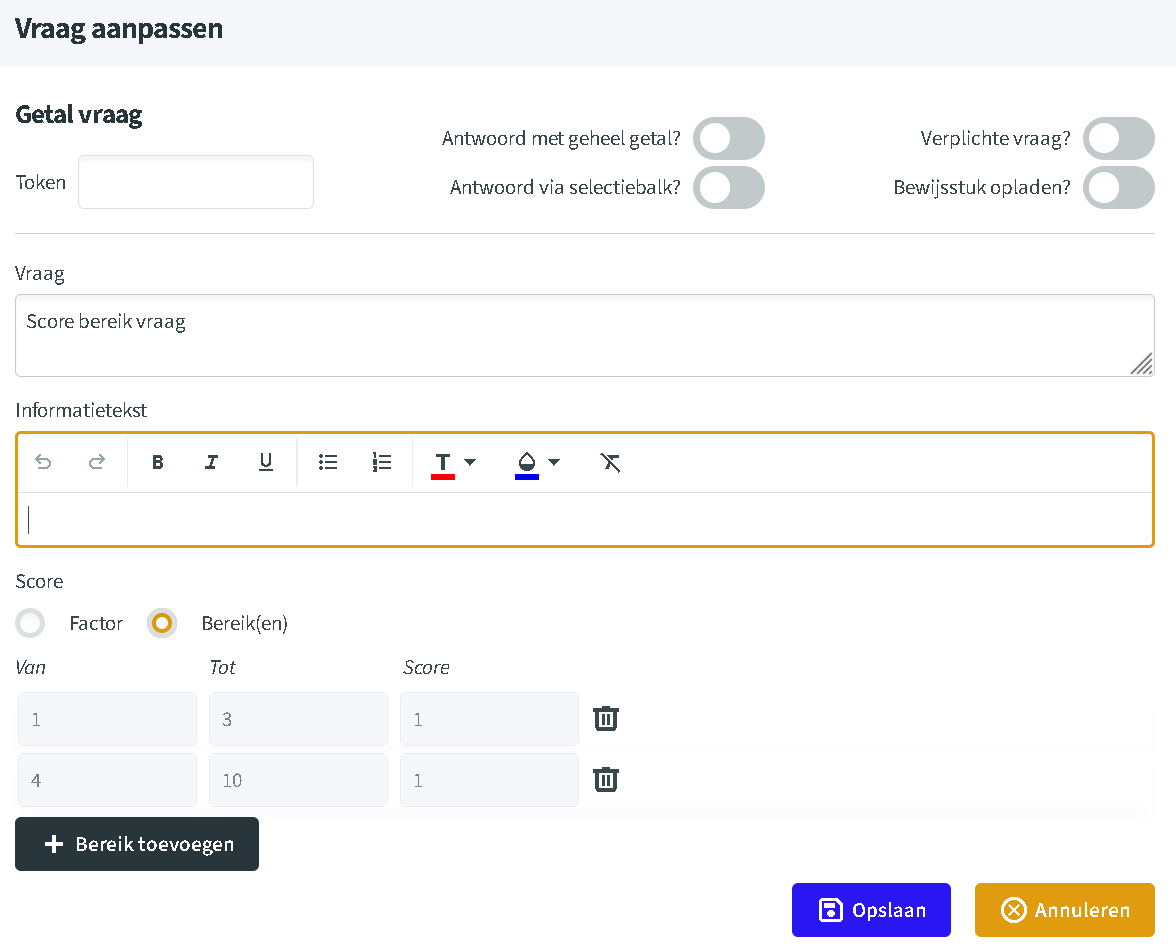
- Under Score, choose Range(s).
- For each range, fill in Van (from), Tot (to) and the matching Score.
- Click Add range (Bereik toevoegen) for the next range.
- Click Save (Opslaan).
In the example, the ranges run from 1 to 3 and from 4 to 10.
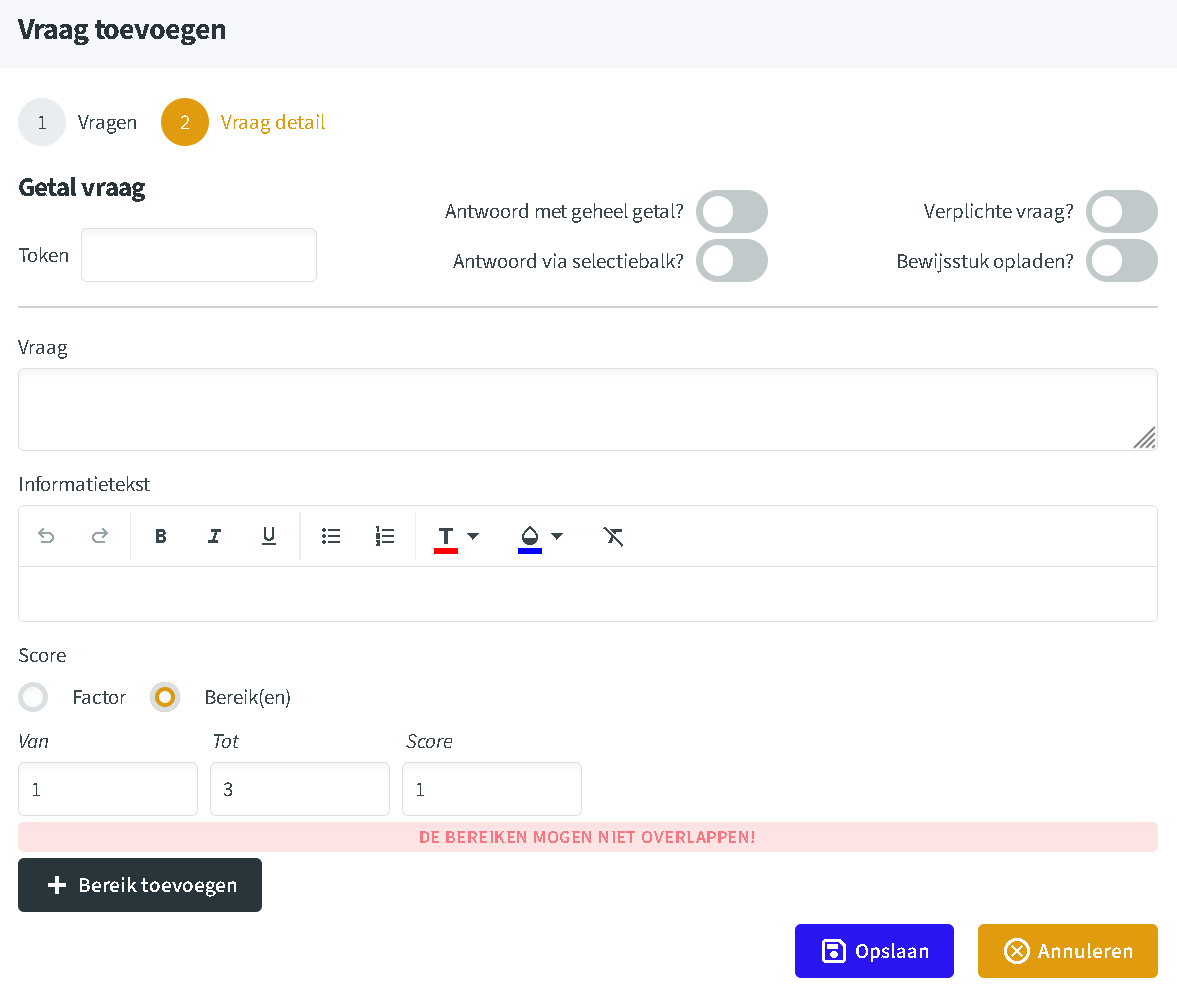
Ranges must not overlap
Each number belongs to at most one range. If you add 3 to 5 while 1 to 3 already exists, they overlap on the number 3. Survey4Bizz then reports that the ranges must not overlap (“De bereiken mogen niet overlappen!”) when you create the question.
What the respondent sees
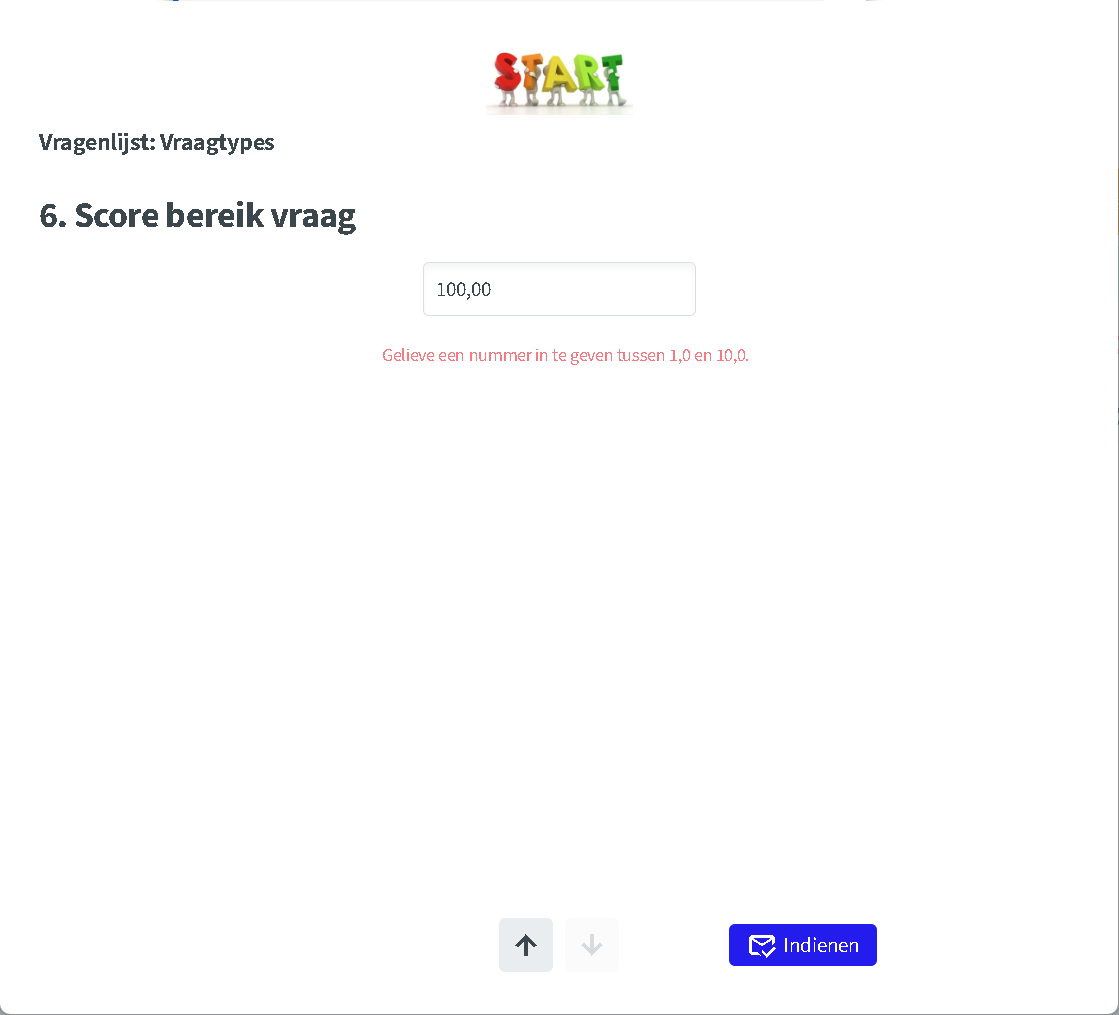
If the respondent enters a number that falls within no range, an error message appears, for example asking for a number between 1.0 and 10.0 when the answer is 100.
Getting the most from the number question
- Want to limit the answer? Use ranges: the factor and the maximum score do not check the answer.
- Ranges with decimal numbers: with ranges such as 1 to 3 and 4 to 10, an answer like 3.5 falls outside both. If you want to accept 3.5 as a valid answer, change the ranges to 1 to 3 and 3.1 to 10. If respondents answer with two decimals, start the second range at 3.01, otherwise 3.05, for example, still falls between them. Or set the question to whole numbers.
- State the allowed values in the information text, so the respondent knows in advance what they may enter.
- Selection bar for ratings: for a score out of 10, a coloured bar is quicker to fill in than typing a number.